    ClipForge AI
    PricingSolutionsCompareBlogGuideFAQ
    Sign inExplore DemoGet Started Free
    Home/User Guide/Pro Studio
    ClipForge AI / User GuideSheet 06 of 14 / Pro Studio

    Pro Studio

    A timeline editor for the open project: place footage, cut it, and render the result as an MP4.

    CF-1Pro StudioStation 06 of 14Tasks7 tasksSteps12 stepsNot built2 tasks not built yet

    Tasks

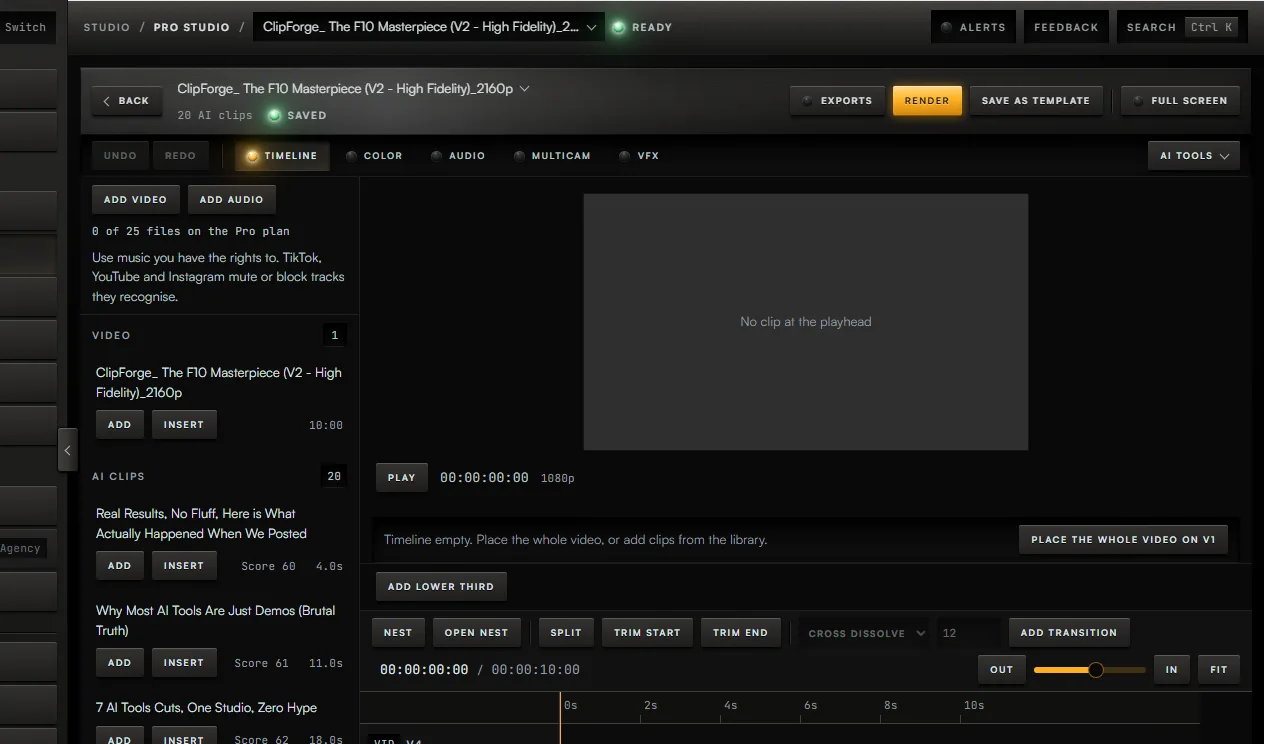
    The Pro Studio screen, with the controls for steps 1 to 5 boxed and numbered.12345

    Task 01 / Pro Studio

    Put the video on the timeline

    Procedure / 2 steps

    1. 01Callout 1. With an empty timeline, press Place the whole video on V1.
    2. 02Callout 2. Or build it from clips: in the clip library press Add to put a clip at the end of the track, or Insert to put it at the playhead.
    Sign up to try it

    Task 02 / Pro Studio

    Add a video from Google Drive

    Procedure / 2 steps

    1. 01In the clip library press Add video from Drive and pick a video. It is copied into the project and listed with the files you added, and it counts toward your plan's file limit.
    2. 02If the library shows Connect Google Drive to add from it instead, press that and connect Drive in Settings under Accounts first.
    Sign up to try it

    Task 03 / Pro Studio

    Cut a clip

    Procedure / 4 steps

    1. 01Press a clip on the timeline to select it, and drag the playhead to where the cut goes.
    2. 02Callout 3. Press Split to cut the clip in two at the playhead.
    3. 03Press Trim start or Trim end to drop everything before or after the playhead.
    4. 04To move a clip, drag it, or select it and press the left and right arrow keys.
    Sign up to try it

    Task 04 / Pro Studio Pro

    Grade the picture and mix the sound

    Procedure / 2 steps

    1. 01Callout 4. Press Color to grade the selected clip with wheels and curves. Press Audio for a volume and pan strip per track.
    2. 02What you set on those pages is saved with the timeline and rendered in the export.
    Sign up to try it

    Task 05 / Pro Studio

    Render the timeline and download it

    Procedure / 2 steps

    1. 01Callout 5. Press Render, then Render again in the dialog. The timeline renders on the server at 1080p.
    2. 02Press Exports to watch it. When it is finished it moves to Completed, where Download saves the file.
    Sign up to try it

    Task 06 / Pro Studio Pro

    Cut a subject out with AI Rotoscoping

    Status

    Not built yet

    AI Rotoscoping is a preview. It detects no subject and exports no mask.

    Task 07 / Pro Studio

    Find scene changes automatically

    Status

    Not built yet

    Scene detection is not built. Asking the Assistant for it runs nothing.

    01 of 07
    05 AI StudioStation07 MediaUser Guide

    Fig. 6 / Pro Studio console

    Strategia-X network

    LinkedNewThis unitUnits11products in the network
    Strategia-XOperations HQ / strategia-x.comParent, opens in a new tab
    • Team-XNewAI Native Workforce OSteam-x.app, opens in a new tab
    • Strategia-X AIApp Idea Validatorstrategia-x.ai, opens in a new tab
    • Android ArchitectAI App Engineeringandroid-x.com, opens in a new tab
    • Vision Studio XNewLocal AI Generationvision-studio-x.com, opens in a new tab
    • Lumina StudioCreative Subscriptionlumina-os.com, opens in a new tab
    • ClipForgeThis unitAI Video Clippingclip-forge.io
    • ElementForgeWindows Creative Suiteelement-forge.app, opens in a new tab
    • ResumeForgeCareer Intelligenceresume-forge.app, opens in a new tab
    • STX.1System Monitorstx-1.com, opens in a new tab
    • Dynasty-XAndroid Appsdynasty-x.com, opens in a new tab
    • WealthWise OSAI Personal Financewealthwiseos.com, opens in a new tab
    • All productsFull catalogstrategia-x.com, opens in a new tab
    ClipForge AI

    Gold-standard creative infrastructure.

    Solutions

    For PodcastersFor YouTubersFor AgenciesFor TikTok CreatorsFor Content TeamsFor Educators

    Resources

    PricingCompareBlogUser GuideFAQLive DemoAccess Portal

    Legal

    TermsPrivacyContact

    About the Developer

    ClipForge AI is built by Strategia-X, an elite IT and business operations consulting firm specializing in strategic technology implementation and digital transformation. Founded by Rocky Elsalaymeh, Strategia-X delivers innovative software products and consulting services with a direct partnership approach.

    Strategia-X

    2026 ClipForge AI. All rights reserved.